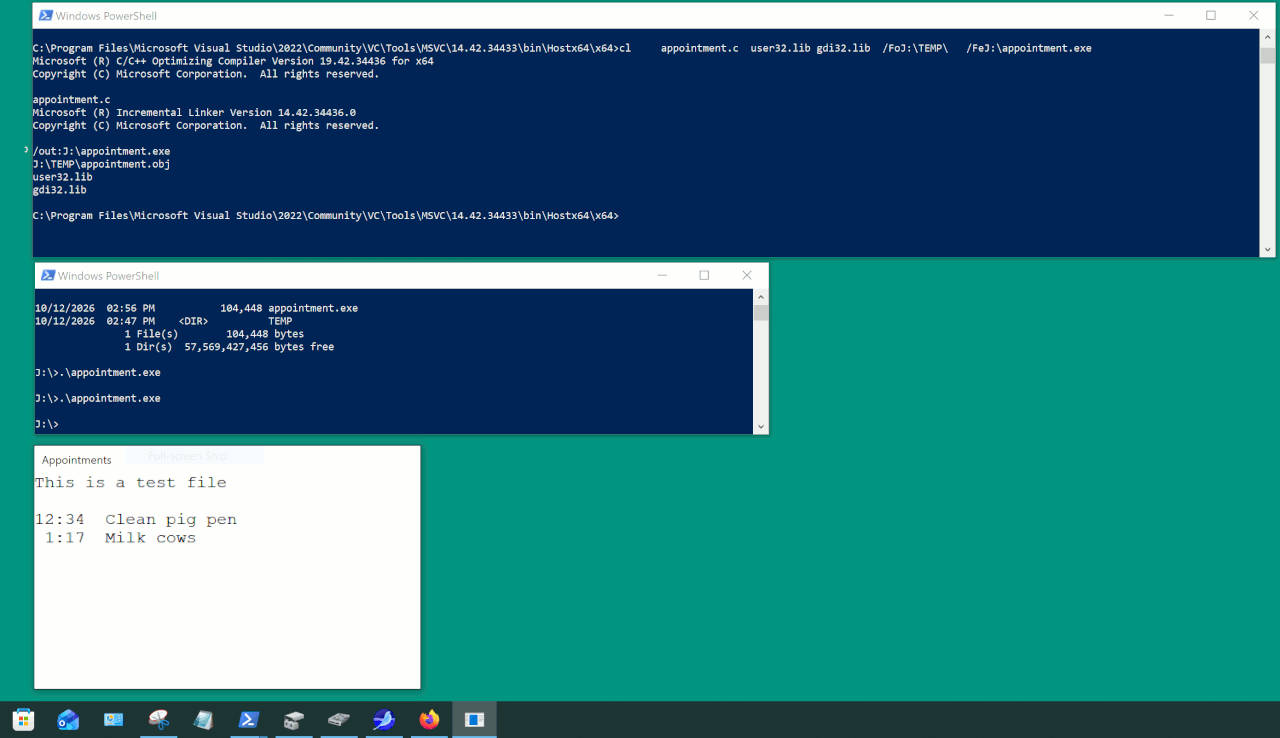
From Newsgroup: alt.comp.os.windows-11
On Mon, 10/12/2026 5:31 AM, scbs29 wrote:
Hello all
Is there any way af marking a window so that I have to confirm closing it.
I have a post-it notes type window permanently open on my desktop with details of
hospital appointments etc. Unfortunately I keep accidentally closing the window,
when all the information disappears. Is there any way that I could set up the window so I am
asked for confiration when I press the close button ?
Well, it appears after my Repair Install was needed, my Copilot session
was ruined. It's no longer in Harmony Format.
************************** CoPilot Question *********************************
Is there any way to run a win32 program on Windows 11, without the traditional decorations
in the upper right corner ? This would be a capability the user could command, in the interest of preventing the window from being dismissed by accident. Operations from the taskbar (iconify, un-iconify, quit) would not be impeded.
************************* CoPilot Answer *****************************
Yes, but not in a general user-controlled way built into Windows.
For a classic Win32 application, the minimize, maximize, and close buttons are part
of the window's non-client area. Whether they appear is ultimately determined by
the application itself through its window styles:
WS_SYSMENU controls the system menu and close button.
WS_MINIMIZEBOX controls the minimize button.
WS_MAXIMIZEBOX controls the maximize button.
Other styles control the title bar and frame.
An application can create a window that has no Close button, or even no title bar
at all. Many kiosk-style and media applications do this.
However, Windows 11 does not provide a general "lock the Close button"
option that a user can apply arbitrarily to any Win32 program.
There are a few possibilities:
1. Third-party window-style utilities
Tools such as AutoHotkey scripts, WinSetZ, Window Manager, or other window-tweaking
utilities can modify window styles after a program starts. For example, an AutoHotkey script can remove the Close button from a specific window while leaving the program running.
Example concept:
WinSet, Style, -0x80000, A
or other style manipulations against the target window.
The effectiveness depends on how the application is written. Some programs recreate
their windows or restore the styles.
2. Group Policy or application settings
Certain programs offer their own "confirm before exit" or "minimize to tray" options. Those are application-specific.
3. Intercept the close request
An AutoHotkey script can intercept clicks on the Close button and ignore them, or display a confirmation dialog instead. This is often more practical than removing the button entirely.
4. Custom shell or kiosk mode
Windows Assigned Access (kiosk mode) can lock down what users can launch or close, but this is intended for dedicated systems rather than normal desktop use.
Why Windows doesn't generally offer this
The Close button is considered part of the application's user interface contract.
Windows assumes that if a program exposes a top-level window, the user is allowed to close it. The operating system therefore leaves control of those buttons primarily to the application developer.
If your goal is specifically to prevent accidental dismissal while still allowing:
launching from the taskbar,
minimizing/restoring,
and exiting through a deliberate action,
then a small AutoHotkey script that removes or disables only the Close button for selected applications is probably the cleanest solution. It can affect programs individually without altering Windows globally.
************************* End: CoPilot Answer *****************************
Paul
--- Synchronet 3.21d-Linux NewsLink 1.2