Anyone know how I can runmaybe
"control panel\All Control Panel Items\Devices and Printers"
from the command line?
T wrote:
Anyone know how I can runmaybe
"control panel\All Control Panel Items\Devices and Printers"
from the command line?
explorer "shell:::{A8A91A66-3A7D-4424-8D24-04E180695C7A}"
Hi All,
W11 25H2
Anyone know how I can run
"control panel\All Control Panel Items\Devices and Printers"
from the command line?
Yours in Confusion,
-T
W11 25H2
Anyone know how I can run
"control panel\All Control Panel Items\Devices and Printers"
from the command line?
Andy Burns wrote:
T wrote:
Anyone know how I can run
"control panel\All Control Panel Items\Devices and Printers"
from the command line?
maybe
explorer "shell:::{A8A91A66-3A7D-4424-8D24-04E180695C7A}"
That is missing the tool bar at the top with add new etc.
explorer ms-settings:devices
T <T@invalid.invalid> wrote:
W11 25H2
Anyone know how I can run
"control panel\All Control Panel Items\Devices and Printers"
from the command line?
Maybe use the old-style Control Panel shortcut of:
rundll32.exe shell32.dll,SHHelpShortcuts_RunDLL PrintersFolder
or
shell:printersfolder
(in File Explorer address bar,
or a shortcut to "explore.exe shell:printersfolder")
Andy gave the shell directive with Class ID to open the Control Panel
page. You can enter that into the address bar of File Explorer, in the
Run Dialog (Win+R), or use a shortcut to run:
explorer.exe shell:::{A8A91A66-3A7D-4424-8D24-04E180695C7A}
In Powershell, use:
Start-Process -FilePath “control.exe” -ArgumentList “printers”
or
Start-Process "explorer.exe" "shell:PrintersFolder"
Those work in Windows 10, and probably in Windows 11, too.
On Thu, 1/22/2026 3:36 PM, VanguardLH wrote:
T <T@invalid.invalid> wrote:
W11 25H2
Anyone know how I can run
"control panel\All Control Panel Items\Devices and Printers"
from the command line?
Maybe use the old-style Control Panel shortcut of:
rundll32.exe shell32.dll,SHHelpShortcuts_RunDLL PrintersFolder
or
shell:printersfolder
(in File Explorer address bar,
or a shortcut to "explore.exe shell:printersfolder")
Andy gave the shell directive with Class ID to open the Control Panel
page. You can enter that into the address bar of File Explorer, in the
Run Dialog (Win+R), or use a shortcut to run:
explorer.exe shell:::{A8A91A66-3A7D-4424-8D24-04E180695C7A}
In Powershell, use:
Start-Process -FilePath “control.exe” -ArgumentList “printers”
or
Start-Process "explorer.exe" "shell:PrintersFolder"
Those work in Windows 10, and probably in Windows 11, too.
With your
explorer shell:printersfolder
if you right click in that window, there
is an Add Printer in there.
Paul
T <T@invalid.invalid> wrote:
Andy Burns wrote:
T wrote:
Anyone know how I can run
"control panel\All Control Panel Items\Devices and Printers" >>>>
from the command line?
maybe
explorer "shell:::{A8A91A66-3A7D-4424-8D24-04E180695C7A}"
That is missing the tool bar at the top with add new etc.
In Windows 10, when I run control.exe, click on "Devices and Printers",
that dialog does not show a "New" button. It does have "Add a device"
and "Add a printer" buttons, or use the File menu to add devices or
printers. Maybe they changed the UI for the dialog in Windows 11. When
you navigate Control Panel (control.exe) to "Devices and Printers", you
see a "New" button?
VanguardLH wrote on 1/22/2026 1:41 PM:
T <T@invalid.invalid> wrote:
Andy Burns wrote:
T wrote:
Anyone know how I can run
"control panel\All Control Panel Items\Devices and Printers" >>>>>
from the command line?
maybe
explorer "shell:::{A8A91A66-3A7D-4424-8D24-04E180695C7A}"
That is missing the tool bar at the top with add new etc.
In Windows 10, when I run control.exe, click on "Devices and Printers",
that dialog does not show a "New" button. It does have "Add a device"
and "Add a printer" buttons, or use the File menu to add devices or
printers. Maybe they changed the UI for the dialog in Windows 11. When >> you navigate Control Panel (control.exe) to "Devices and Printers", you
see a "New" button?
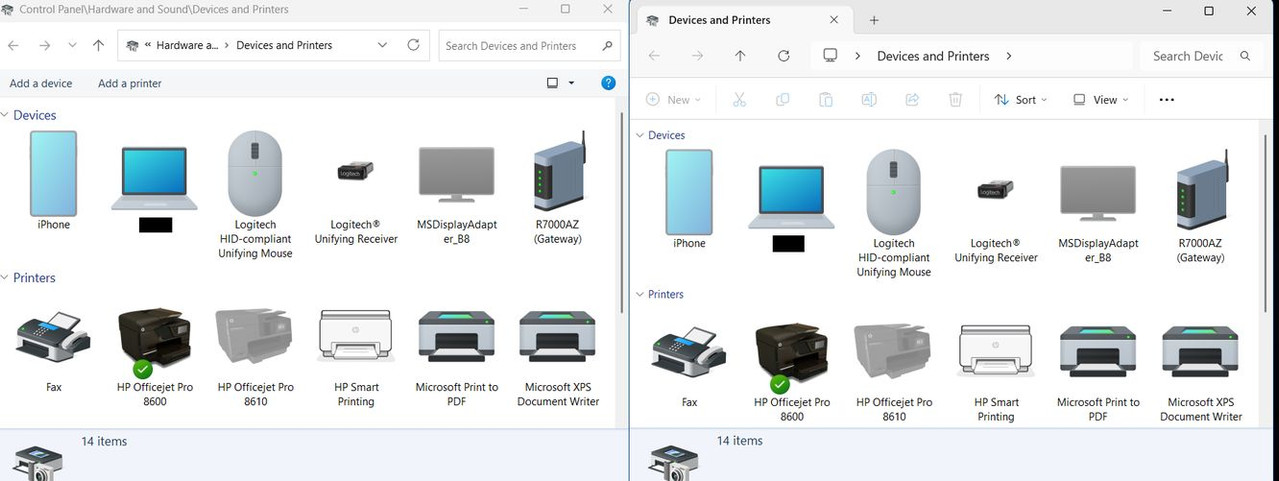
Different routes(to Devices and Printers in Win11) provide different results.
- Note: below I'm abbreviating 'Devices and Printers' term in the comments about the linked picture as DevPrt
-
See linked pic.
<https://i.postimg.cc/90CqZw3R/Dev-Prt-Both.jpg>
- The left side pic is the result when accessing DevPrt via two routes
in Win11's. both routes(1 and 2) yield the same dialog box.
1. Settings\Bluetooth and Devices\Devices\More devices and printer
2. Control Panel shortcut\Bluetooth and Devices\Devices\More devices
and printers
- The right side pic is the result when accessing DevPrt in Win11 via
the earlier mentioned 'explorer shell' route.
- The left side pic via (1 or 2) does not have the 'greyed out new' icon
but does have the usual options(Add device, Add printer)
- The right side pic via command.com (as admin) route has the 'New' icon(which is inactive/greyed out).
You'll also notices some other differences
- the left side pic shows a square icon(More Options for sizing the respective icons).
- the right side pic shows more greyed-out icons, plus Sort, View(same icon sizing items), and an ellipsis(3 dots) for a few File Explorer-type features.
You can make your own guesses on why the differences.
- shell command vs. settings?
- old code vs. newer code?
- never intended to be the same via command vs Settings
- more Win10/11 migration to Settings GUI
- Hoodoo magic
OpenShell's "Devices and Printers" gets me the one I want.
On 1/22/26 11:01 PM, ...w¡ñ§±¤ñ wrote:
VanguardLH wrote on 1/22/2026 1:41 PM:
T <T@invalid.invalid> wrote:
Andy Burns wrote:
T wrote:
Anyone know how I can run
"control panel\All Control Panel Items\Devices and Printers"
from the command line?
maybe
explorer "shell:::{A8A91A66-3A7D-4424-8D24-04E180695C7A}"
That is missing the tool bar at the top with add new etc.
In Windows 10, when I run control.exe, click on "Devices and Printers",
that dialog does not show a "New" button. It does have "Add a device"
and "Add a printer" buttons, or use the File menu to add devices or
printers. Maybe they changed the UI for the dialog in Windows 11. When >>> you navigate Control Panel (control.exe) to "Devices and Printers", you
see a "New" button?
Different routes(to Devices and Printers in Win11) provide different
results.
- Note: below I'm abbreviating 'Devices and Printers' term in the
comments about the linked picture as DevPrt
-
See linked pic.
<https://i.postimg.cc/90CqZw3R/Dev-Prt-Both.jpg>
- The left side pic is the result when accessing DevPrt via two routes
in Win11's. both routes(1 and 2) yield the same dialog box.
1. Settings\Bluetooth and Devices\Devices\More devices and printer
2. Control Panel shortcut\Bluetooth and Devices\Devices\More devices
and printers
- The right side pic is the result when accessing DevPrt in Win11 via
the earlier mentioned 'explorer shell' route.
- The left side pic via (1 or 2) does not have the 'greyed out new'
icon but does have the usual options(Add device, Add printer)
- The right side pic via command.com (as admin) route has the 'New'
icon(which is inactive/greyed out).
You'll also notices some other differences
- the left side pic shows a square icon(More Options for sizing the
respective icons).
- the right side pic shows more greyed-out icons, plus Sort,
View(same icon sizing items), and an ellipsis(3 dots) for a few File
Explorer-type features.
You can make your own guesses on why the differences.
- shell command vs. settings?
- old code vs. newer code?
- never intended to be the same via command vs Settings
- more Win10/11 migration to Settings GUI
- Hoodoo magic
OpenShell's "Devices and Printers" gets me the one I want.
T wrote on 1/24/2026 10:28 PM:
On 1/22/26 11:01 PM, ...w¡ñ§±¤ñ wrote:
VanguardLH wrote on 1/22/2026 1:41 PM:
T <T@invalid.invalid> wrote:
Andy Burns wrote:
T wrote:
Anyone know how I can run
"control panel\All Control Panel Items\Devices and Printers"
from the command line?
maybe
explorer "shell:::{A8A91A66-3A7D-4424-8D24-04E180695C7A}"
That is missing the tool bar at the top with add new etc.
In Windows 10, when I run control.exe, click on "Devices and Printers", >>>> that dialog does not show a "New" button. It does have "Add a device" >>>> and "Add a printer" buttons, or use the File menu to add devices or
printers. Maybe they changed the UI for the dialog in Windows 11.
When
you navigate Control Panel (control.exe) to "Devices and Printers", you >>>> see a "New" button?
Different routes(to Devices and Printers in Win11) provide different
results.
- Note: below I'm abbreviating 'Devices and Printers' term in the
comments about the linked picture as DevPrt
-
See linked pic.
<https://i.postimg.cc/90CqZw3R/Dev-Prt-Both.jpg>
- The left side pic is the result when accessing DevPrt via two
routes in Win11's. both routes(1 and 2) yield the same dialog box.
1. Settings\Bluetooth and Devices\Devices\More devices and printer
2. Control Panel shortcut\Bluetooth and Devices\Devices\More
devices and printers
- The right side pic is the result when accessing DevPrt in Win11 via
the earlier mentioned 'explorer shell' route.
- The left side pic via (1 or 2) does not have the 'greyed out new'
icon but does have the usual options(Add device, Add printer)
- The right side pic via command.com (as admin) route has the 'New'
icon(which is inactive/greyed out).
You'll also notices some other differences
- the left side pic shows a square icon(More Options for sizing the >>> respective icons).
- the right side pic shows more greyed-out icons, plus Sort,
View(same icon sizing items), and an ellipsis(3 dots) for a few File
Explorer-type features.
You can make your own guesses on why the differences.
- shell command vs. settings?
- old code vs. newer code?
- never intended to be the same via command vs Settings
- more Win10/11 migration to Settings GUI
- Hoodoo magic
OpenShell's "Devices and Printers" gets me the one I want.
If that works then fine(glad it gets you what you want)...but that
wasn't related to the differences in the two approaches I provided.
-i.e. those two methods with different results is just 'wiz-ee-wig'
Even Windows 7 old GUI did not have a 'New' option for Devices and Printers(only Add Device, Add Printer) just like the optional control panel-like GUI accessible in W10/W11.
- the 'New' button/icon that you see/saw is not a device 'add' option, it's an Explorer option(and only present because Explorer was called via
a shell command in a command.com or powershell window) - only giving you what it could give.
I am after how to do it from the command line.
T wrote:
I am after how to do it from the command line.
Slightly puzzled why you want to use the command line to invoke the
printer GUI?
For most people adding a new printer is something done once every few
years, not several times a day!
Andy Burns wrote:If you want a command line to directly launch the "add printer" wizard, try
For most people adding a new printer is something done once every few
years, not several times a day!
You are forgetting that I have a lot of
customers. Installing printers is a
common task.
If you want a command line to directly launch the "add printer" wizard, try
rundll32 printui.dll PrintUIEntry /id
On 1/25/26 1:08 AM, Andy Burns wrote:
If you want a command line to directly launch the "add printer"
wizard, try
rundll32 printui.dll PrintUIEntry /id
Thank you! I am adding that one to the list.
I still need "devices and Printers"
On 1/25/26 1:08 AM, Andy Burns wrote:
If you want a command line to directly launch the "add printer"
wizard, try
rundll32 printui.dll PrintUIEntry /id
Thank you! I am adding that one to the list.
I still need "devices and Printers"
On 1/25/26 2:12 AM, T wrote:
On 1/25/26 1:08 AM, Andy Burns wrote:
If you want a command line to directly launch the "add printer"
wizard, try
rundll32 printui.dll PrintUIEntry /id
Thank you! I am adding that one to the list.
I still need "devices and Printers"
This seems to work best:
explorer.exe shell:::{A8A91A66-3A7D-4424-8D24-04E180695C7A}
It is not quite the same as OpenSell's Devices and Printers,
but close
Andy Burns wrote:
T wrote:
I am after how to do it from the command line.
Slightly puzzled why you want to use the command line to invoke the
printer GUI?
For most people adding a new printer is something done once every few
years, not several times a day!
You are forgetting that I have a lot of
customers. Installing printers is a
common task. W11 and printers is a match
made in ...
I have a list of run commands that I use, instead of
screwing around going through w7/w10/w11 ever changing
GUI's. Getting to Printers and Devices is still eluding me.
Paul's suggestion is close. But I'd like the whole potato
that OpenShell gives me.
T wrote:
On 1/25/26 2:12 AM, T wrote:
On 1/25/26 1:08 AM, Andy Burns wrote:
If you want a command line to directly launch the "add printer"
wizard, try
rundll32 printui.dll PrintUIEntry /id
Thank you! I am adding that one to the list.
I still need "devices and Printers"
This seems to work best:
explorer.exe shell:::{A8A91A66-3A7D-4424-8D24-04E180695C7A}
It is not quite the same as OpenSell's Devices and Printers,
but close
Didn't we start with that one?
On 1/25/26 3:02 AM, Andy Burns wrote:
T wrote:
On 1/25/26 2:12 AM, T wrote:
On 1/25/26 1:08 AM, Andy Burns wrote:
If you want a command line to directly launch the "add printer"
wizard, try
rundll32 printui.dll PrintUIEntry /id
Thank you! I am adding that one to the list.
I still need "devices and Printers"
This seems to work best:
explorer.exe shell:::{A8A91A66-3A7D-4424-8D24-04E180695C7A}
It is not quite the same as OpenSell's Devices and Printers,
but close
Didn't we start with that one?
Yes.
I have since found out that is a C+++ system
call that OpenShell uses.
| Sysop: | Scott |
|---|---|
| Location: | Freeburg, IL, USA, Earth |
| Users: | 4 |
| Nodes: | 16 (0 / 16) |
| Uptime: | 221:15:14 |
| Calls: | 4 |
| Messages: | 15,886 |